Understand Arch manual with me
Disclaimer: I used my natural language throughout this blog most of it are written at my free time and maybe i have missed some points or i might have blabbered something
So sorry for that in advance :)
Let’s start with the basics why do we need a bootable USB for installing a operating system to a machine?
Computer always boots from some form of storage they look for a bootloader (like GRUB, Windows Boot Manager, etc) to start the OS.
since the system doesn’t have that, we need a external medium a bootable USB in this case that contains a bootable OS installer and a bootloader to kickstart the process.
- when your PC powers on it starts executing a set of predefined instructions from (UEFI/BIOS)
- it looks for a thing to ‘boot from’
- if it doesn’t find anything it asks ‘are you playin w me??’
UEFI is a modern replacement for BIOS, offering a more secure and feature-rich boot process
SO what does a BIOS/UEFI needs
- a boot sector
- a bootloader
- a filesystem it can parse
- and an executable image to load.
So we give it an external media that contains all of these,
- A boot sector(
MBRorEFI) - a minimal bootloader (like
GRUB) - the ISO contents
A boot sector is the first sector of a storage device containing instructions to start the computer’s operating system. MBR (Master Boot Record) is a traditional boot sector that holds the bootloader code and a partition table to manage disk partitions, used with older BIOS systems. EFI (Extensible Firmware Interface), now more commonly UEFI (Unified Extensible Firmware Interface), is a modern replacement for BIOS that uses a different boot process, often with a GUID Partition Table (GPT) and an EFI System Partition to manage the boot process.
NOTE: We’re going to learn about the installation process that makes arch users brag (I use Arch BTW). there is another popular way of installation using archinstall script that takes care of some heavy lifting for you.
Few things about Arch
- Archlinux is one of those few distros that is developed from the ground up unlike some famous distros
ubuntu,fedorafor example which are forks ofdebianandred hatrespecively. - Archlinux should run on any x86_64 architecture machine and it will take 2gigs of disk space after a successfull installation.
Now you may ask how come archlinux takes only 2 gigs of space?
- Ubuntu default install is like 10–12GB.
- Windows? Bro it eats 20–30GB like snacks.
These OSes thinks our users probably need this so let’s ship it. This makes the base install bloated asf.
Here’s what makes Arch different
- It only gives you a Kernel, Shell, pacman(package manager in Arch), a few essentials and asks you to install whatever you want to your liking.
Basically bro do whatever you wanna do with your system we don’t make any opinions.
This is one of the reasons people like Arch.
Now let’s move to the steps after plugging in your bootable USB to the target device.
You will be logged in on the first virtual console as the root user, and presented with a Zsh shell prompt.
A virtual console (VC) — also known as a virtual terminal (VT) — is a conceptual combination of the keyboard and display for a computeruser interface. It is a feature of someUnix-likeoperating systemssuch asLinux,BSD,illumos,UnixWare, andmacOSin which thesystem consoleof the computer can be used to switch between multiple virtual consoles to access unrelated user interfaces. Virtual consoles date back at least toXenixandConcurrent CP/Min the 1980s.
Default keyboard layout will be in US other Available layouts can be listed with:
localectl list-keymaps to select a keyboard layout, pass its name to LoadKeys
loadkeys de-latin1 setfont ter-132b This command is to set a big sized font in the terminal in-case if you feel the terminal font is too small to see.
cat /sys/firmware/efi/fw_platform_size This command is to verify the boot mode.
- If the command returns
64, the system is booted in UEFI mode and has a 64-bit x64 UEFI. - If the command returns
32, the system is booted in UEFI mode and has a 32-bit IA32 UEFI. While this is supported, it will limit the boot loader choice to those that support mixed mode booting.
Next set of commands are related to connecting to the internet.
ip link Linux exposes all network interfaces (physical + virtual) through the netlink subsystem.
Netlink is a communication system that lets the kernel and user-space exchange networking information.
It’s like a messaging API built into Linux
kernel can’t read commands like set eth up, netlink is a communication channel between user-space tools (like ip, ifconfig, NetworkManager) and the kernel networking code.
It’s dangerous to let user space programs to change kernel memory
netlink standardizes them it’s literally a socket-based protocol.
It’s the command that asks the kernel for status of all of the network interfaces. ip link is the command that shows and controls network interface on your system.
It’s basically the “interface management” part of the ip command.
if you run this command you’ll see a output sth like
- loopback
- ethernet
- wifi
- virtual bridges
- docker interfaces
- tunnels
- wireguard interfaces
you can also perform certain actions like bringing an interface up and down.
ip link set wlan0 up ip link set eth0 down
rfkill There are bunch of radio transmitters in our system:
- Wi-Fi
- Bluetooth
- NFC (rare)
- WWAN / mobile broadband
- Airplane mode toggles
- Hardware switches
Each of these can be soft-blocked(by software) or hard-blocked(by a physical switch or firmware).
rfkill is a debugging + control tool to manage wireless radio devices on Linux.
rfkill list lists all radio devices rfkill unblock all unblocks all radios rfkill unblock wifi unblock only Wi-Fi
connect to wifi using iwctl
- iwctl is the command line utility to talk to the Wi-Fi daemon.
- nmcli can be used if your device uses NetworkManger to manage Wi-Fi
ping you know what ping does.
Next up: Changing time and date
timedatectl This command is used to view and change the system date, time, and time-related settings.
it can be achieved by
sudo timedatectl set-time "2025-12-01 21:30:00"sudo timedatectl set-time "2025-12-01"sudo timedatectl set-timezone Asia/Kolkata
Partition the disk
In linux everything is treated as a folder. disks are assigned to a block device such as /dev/sda, /dev/nvme0n1 or /dev/mmcblk0
fdisk -l this command is used to view the disks and partitions alternative popular command for the similar use case would be lsblk
RAID mode shouldn’t be enabled in your system (coz RAID support in linux is poor). If you’re unsure what raid is. take a read at this
https://x.com/kaizakinn/status/1995538976409874904?s=20 Common Example:
sudo fdisk /dev/sda inside fdisk you’ll get options like
p= print partitionsn= new partitiond= delete partitionw= write changesq= quit without saving
as per Arch manual You’ll be told to create a swap partition in this step If you’re unsure what swap is. have a read
https://x.com/kaizakinn/status/1991753444403695900?s=20
Format partitions:
Newly created partitions has to be formatted with an appropriate file system we format ext4 file system on the main partition coz its the default file system for linux.
mkfs.ext4 /dev/root_partition mkfs stands for make file system.
swap partition has to be formatted as well,
mkswap /dev/_swap_partition mkswap stands for make swap.
EFI partition is formatted with FAT32 using
mkfs.fat -F 32 /dev/efi_system_partition
- -F flag means “File Allocation Table size” it tells mkfs to create a FAT32 file system.
- fat is the simple old school file system
- works on almost all devices.
Mounting the file systems:
Mount the root volume to /mnt
- what is mount and why are we mounting root volume to mnt in the first place.
- mount is a Linux command that attaches a storage device (like a partition, USB drive, SSD, NVMe, etc.) to a folder in your filesystem so you can access its files.
/dev/sda1-> mounted to ->/mnt- we mount these storage to a directory so that the installer can copy the OS files to that directory.
/mnt/ ├── boot/ ├── home/ └── (other Linux system files)mount --mkdir /dev/efi_system_partition /mnt/boot mount with --mkdir creates the directory if it doesn't exist.
swapon /dev/swap_partition This command enables the created and formatted swap volume.
Installation
Since arch base install has only essentials additional packages has to be downloaded from the mirror servers.
They are defined in the /etc/pacman.d/mirrorlist The topmost worldwide mirror should be fast enough for most people, if not you can edit the file for the same.
This file will later be copied to the new system by pacstrap, so it is worth getting right.
some essential packages are mentioned in the arch install manual to get you started and its pretty self-explanatory if you read em why you wanna install those packages so im skipping those here.https://wiki.archlinux.org/title/Installation\_guide#Install\_essential\_packages
For example, a basic installation with the Linux kernel and firmware for common hardware:
pacstrap -K /mnt base linux linux-firmware now you may have a question pacman is the package manager in arch right why are we even using pacstrap
pacmanis used to install packages in a running arch system.pacstrapinstalls the base Arch system onto a new disk
When you install Arch from the ISO, you are not inside your actual system yet. You are in a live environment (temporary, RAM-based).
you’re future Arch system lives inside /mnt
You must install the “base system” there. That is exactly what pacstrap does.
pacstrap meaning pac = pacman strap = bootstrap.
pacstrap installs the initial OS files to /mnt
So why is the -K flag at the end?
lemme give you some context before explaining that flag.
- arch linux signs all packages
- your system needs valid keys to verify them
Without keys the installed system has no keys so it must initialize them using pacman-key --init
- This can fail if:
- Your clock is wrong
- Networks fail
- Key servers are down
-K avoids these problems.
This is what -K does
- Copy the keyring from the live environment into the new system’s
/mnt/etc/pacman.d/gnupg - So the new system already trusts the same package-signing keys
Next up: configuring the system
fstab
What is fstab and why do we need it? it is just a config file that tells your system:
- which storage devices exist
- where they should be mounted
- with what permissions and options
- whether they should mount automatically during boot.
Linux has no built-in memory of where your partitions belong. it has no clue where your devices like /dev/sda1/dev/nvme0n1p3/dev/sdb should attach in your folder tree.
- Every time you reboot, your disks would NOT mount automatically.
- You’d have to run
mount /dev/sda2 /mnt/storageevery single time.
Breakdown of fstab entry:
- Device (disk UUID or path)
- Mount point (
/home,/mnt,/boot) - Filesystem (
ext4,ntfs,btrfs,vfat, etc.) - Options (
read-write,noatime,auto, etc.) - Dump backup flag
- fsck order (boot-time disk checking)
genfstab -U /mnt >> /mnt/etc/fstab genfstab = "Generate fstab entries"
- it scans all currently mounted partitions under
/mnt - it figures out device UUIDs, mount points, filesystem types, mount options
- and prints out valid
/etc/fstablines
-U means UUIDs "stable, unique identifiers" instead of /dev/sda1 style paths. This is safer because device names can change between boots.
>> this takes the output of genfstab and appends it to /mnt/etc/fstab /mnt is where the arch system currently mounted.
It creates the new Arch system’s /etc/fstab, which tells it:
“Mount these partitions exactly the same way the installer just did, every time the system boots.”
Interactive with the new system’s environment
arch-chroot /mnt What is chroot? as we now know when we install a os to our system we’re booted into a live ISO and that is not our real system. It’s just a temporary environment.
But we need to run commands inside our newly installed system how do we do that even tho the system isn’t booted yet?
that is what chroot = change root is.
now the root folder is changed to the mountpoint /mnt so this creates a fake environment, programs behave like they're running on a live system.
now comes another question. what tf does arch-chroot does? normal chroot only changes the filesystem root. it does not automatically mount:
/proc/sys/dev/run
These dirs provide hardware info, devices, process info, and runtime data. Without these, half the tools will break. Try using pacman inside a plain chroot -> stuff fails. Try installing grub -> fails because no /sys or /dev.
so basically arch-chroot is a wrapper around chroot that handles all these with permissions and environment variables as well.
Time
ln -sf /usr/share/zoneinfo/Area/Location /etc/localtime When your system shows the wrong time, tons of stuff breaks:
- logs are out of order
- cron jobs run at wrong times
- SSL certificates appear invalid
- developer tools throw warnings
- package managers complain
Hardcoding your timezone is stupid
Linux uses a file called:
/etc/localtime This file tells Linux “use this TimeZone data”
All timezone definitions are stored in:
/usr/share/zoneinfo/ Inside this folder, you have subfolders like:
Asia/Kolkata Europe/London America/New _York so what does the command do? ln - create a link -s - Symbolic link -f - force overwrite.
It links your timezone info to the /etc/localtime so that your systems behave correctly
hwclock --systohc
To prevent clock drift and ensure accurate time, set uptime synchronizationusing aNetwork Time Protocol(NTP)
This is done using timedatectl set-ntp true
your system has two clocks
System Clock (software clock)
- Lives in RAM
- Starts running when the kernel boots
Hardware Clock (a.k.a RTC — Real Time Clock)
- A little clock chip on your motherboard
- Runs even when your laptop is turned off
- Powered by a tiny CMOS battery
When your PC boots, it reads time from the hardware clock, then the kernel runs its own clock.
If these two clocks mismatch — you get all kinds of weird issues.
hwclock --systohc stands for Hardware clock <- System Clock "Take the current System Time and write it into the Hardware Clock"
When installing Linux (especially Arch), you:
- Set your timezone
- Sync your system clock using NTP (
timedatectl set-ntp true) - Then you run
hwclock --systohcto save that correct time into hardware.
Localization
From manual
To use the correct region and language specific formatting (like dates, currency, decimal separators),edit
/etc/locale.genand uncomment the UTF-8localesyou will be using. Generate the locales by running:
locale-gen
All the formatting settings like
- language to display
- date formatting
- decimals be displayed 1.23 or 1,23
- how to sort string with special chars
- which character encoding to support (UTF-8 etc…)
comes from a setting called locale. A locale = rules for language + region + formatting. Ex: en_US.UTF-8 English (United States)
Linux needs these compiled and stored so apps can actually use them
So locale-gen generates/compiles the locales you enabled in /etc/locale.gen
you uncomment what are all the options you want in /etc/locale.gen then run locale.gen to actually generate the compiled locale files for your system.
then create a /etc/locale.conf file and set which locale you want your system to use by default
TLDR; /etc/locale.gen - Enable/generate available locales /etc/locale.conf - Choose the default system locale
/etc/locale.conf LANG=en_US.UTF-8
Network Configuration
This file /etc/hostname exactly contains one line that denotes the hostname for your system without this name other devices in the network cannot refer to it, this device cannot identify itself when sending packets.
etc/hostname karthik-dev-machine
This is the file the init system (like systemd) reads It sets the system’s hostname with that value. All services started after this point inherit that hostname.
The temporary way to do this is
hostname karthik This resets after reboot.
Initramfs
What is initramfs?? why do we need it?
At the very start, the bootloader like GRUB loads the linux kernel into memory.
The kernel alone cannot access your real filesystem yet.
- your root filesystem might be on ext4, btrfs, LVM, LUKS encrypted volume, RAID, NVMe etc…
- the kernel doesn’t have the drivers for those built-in
- The kernel has no idea how to decrypt your drive or activate LVM or assemble RAID.
initramfs - The kernel's temporay mini-operating system initramfs - initial RAM filesystem.
its basically,
- a tiny temporary linux filesystem
- loaded into RAM at boot.
- Contains scripts + drivers to “prepare the real system”
you can call it a mini rescue OS that runs before your actual Linus system does. it has kernel modules(drivers), binaries like ls, mount, lvm, cryptsetup and boot scripts
For example ext4 drive: initramfs loads disk + filesystem modules, mounts root switches to the real system simple. This is different for each drive lvm, LUKS, RAID etc..
now this pretty much explains why do we need
mkinitcpio -P initramfs depends on your system configuration. If you change any one of this
- filesystem
- add encryption
- add LVM
- install new kernel modules
- modify hooks in
/etc/mkinitcpio.conf
then old initramfs might not contain the right tools so we regenerate it with this command.
What is LVM? LVM = Logical Volume manager Problems before LVM:
- You cannot easily resize or move partitions.
- You can’t combine multiple disks into one logical storage pool.
- You can’t resize filesystems while they’re online (in most cases).
I once myself faced this problem then i had to reinstall arch in a big partition. sadly i didn’t know about LVM back then.
LVM treats storage like RAM, just pool it and use what you need. its like a lego blocks for storage. Instead of physical partitions, you create virtual ones that you can resize, move, extend, shrink — while the system is running.
Some jargon:
- PV = Physical Volume:
your actual storage devices:
/dev/sda/dev/nvme0n1p2any disk like this
you convert them into PV's
pvcreate /dev/sda2
- VG = Volume Group
You combine multiple volume groups into one big pool.
vgcreate myvg /dev/sda2 /dev/sdb1
- LV= logical volume
lvcreate -n root -L 40G myvg lvcreate -n home -L 100G myvg
These are completely virtual and you can resize them anytime.
TLDR;
Layer 1 PV (Physical Volumes)
Actual disks or partitions.
Layer 2 VG (Volume Group)
A pool/bucket made by combining physical volumes.
Layer 3 LV (Logical Volumes)
Virtual partitions created inside the volume group.
how resizing partitions LIVE is done in LVM
lvextend -L +10G /dev/myvg/root resize2fs /dev/myvg/root Boom, done. No reboot. No stress.
LVM can do more things:
- Combine multiple disks
- Easier encryption (LUKS + LVM combo)
- Perfect for VMs, servers, production machines
take snapshots (like ZFS-lite) clone volumes resize storage on the fly This is how actual sysadmins run storage.
Root Password
passwd you know what this command does.
Boot Loader
A boot loader is a piece of software started by the firmware-UEFI or BIOS. It is responsible for loading the kernel with the wanted kernel parameters and any external initramfs images.
A boot manager presents a menu of boot options, or provides some other way to control the boot process i.e. it just runs other EFI executables. Ex: grub is a boot manager.
In the case of UEFI, the kernel itself can be directly launched by the UEFI using the EFI boot stub. A separate boot loader or a boot manager can still be used for the purpose of editing kernel parameters before booting.
Reboot
Optionally manually unmount all the partitions with
umount -R /mnt: this allows noticing any "busy" partitions, and finding the cause withfuser(1).
now comes the question why do we need to unmount the /mnt partition before exiting?
It’s the same as we eject the pendrive from file explorer before physically removing the pendrive from the system.
It’s more of a safety procedure.
what might happen if you didn’t unmout the partition before reboot.
- The kernel might still be writing files to
/mnt pacstrapormkinitcpiomight not have flushed all data- Journals (ext4/others) might not be clean
- You may end up with a bootloader that didn’t install correctly
- Or a system that doesn’t boot because
/etc/fstabor kernel images weren’t actually written
So now what is fuser? fuser = File user finder. It lets you check which processes are currently using a file or directory.
fuser -v /mnt This will show:
- Which programs still have files open
- Which terminals are accessing /mnt
- If there’s a stray shell sitting in /mnt
- If a background process is messing with the mount
you can even kill all the processes using the /mnt folder
fuser -k /mnt fuser is also usefull in certain other scenarios as well for example you’re starting your app in port 3000 and the shell says port 3000 is already in use so you can use fuser in that scenario.
fuser -v 3000/tcp you can even kill it using this command:
fuser -k 3000/tcp where -k stands for kill.

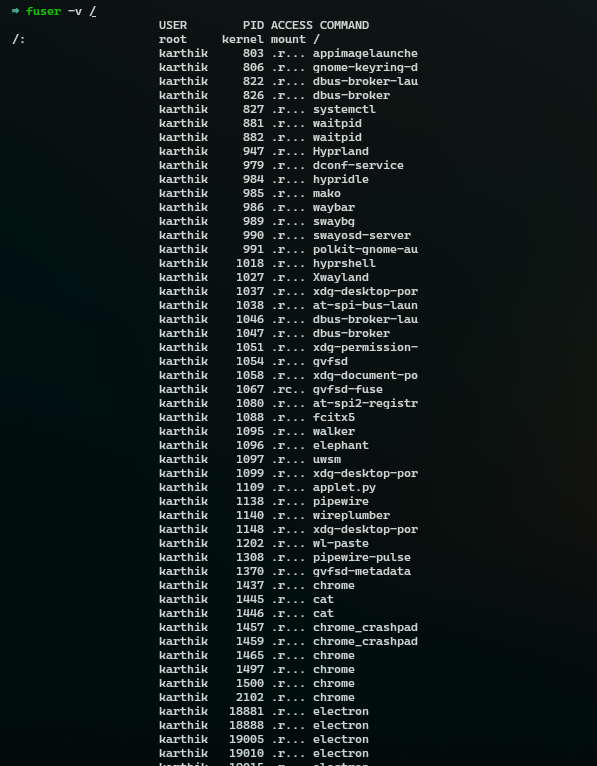
now you might have got what fuser does and how it is useful: here for demonstration purposes i used fuser to check what processes are using the file system.
What issue does a “busy partition” cause???
you do umount and it says umount: /mnt: target is busy
That means something is still using that partition.
could be:
- Your terminal is “cd”-ed into /mnt
- A background process is reading the filesystem
- A package install is still running
- A log viewer is open
- A file manager (less, nano, vim) hasn’t closed the file
If you ignore this and shut down or reboot:
- data fully not written and may result in corrupted sytem
- bootloader not fully installed
- incomplete configs
So its always a good idea to check busy mounts
Now that we’ve learnt what these series of commands in archlinux install manual do, it’s time to goon more on arch
and now don’t forget you’re not just a normal arch user you can brag with no hesitation “I use ARCH BTW”
if you want to read more about post-installation steps which are basically installing some gui’s and stuff that i assume you already know so i’m skipping those.
https://wiki.archlinux.org/title/Installation_guide
Anyway Happy Learning Peace 🕊️
Related
Continue reading
All writings