Complete Guide: How to Dual Boot Arch Linux(Omarchy) and Windows 11 Using Arch Install Script
Introduction
This tutorial will guide you through the easiest and safest way to dual-boot Arch Linux with Windows 11 using the all-new Arch Install Script. This method allows you to install Arch Linux alongside Windows 11 on the same drive without risking data loss. However, it’s strongly recommended to back up your files to the Cloud or an external drive before proceeding.
At the end of this guide, you’ll also learn how to safely remove Arch Linux from the dual boot setup if needed.
Pre-requisites
Before starting, ensure you have:
- Windows 11 or Windows 10 installed on your PC or laptop
- An 8GB or higher USB drive to create a bootable disk with Arch Linux
- At least 50GB of free space available on your existing drive
Step 1: Create System Restore Point
Before installing Arch Linux, it’s recommended to create a System Restore point on your Windows computer as a safety backup.
- Search for “restore point” in the Start menu
- Open “Create a restore point”
- Click “Create” to take a snapshot of your current system state
This backup allows you to restore your system to normal if something goes wrong with the Arch installation.
Step 2: Disable BitLocker Encryption (Windows 11 Pro Only)
If you’re using Windows 11 Pro, disable BitLocker encryption before proceeding, as it can interfere with Linux installations.
Note: For Windows 11 Home users, this feature is disabled by default.
- Search for “BitLocker” in Start menu
- Turn off BitLocker for your system drive
- Wait for decryption to complete
Step 3: Creating Free Space For Arch Linux
Now let’s create free space on your drive for Arch Linux installation.
- Right-click on the desktop and open Terminal (or press
Win + Xand select Terminal/PowerShell) - Type the following command and press Enter:
diskmgmt.msc This opens the Disk Management utility, which displays all drives and their partitions.
Understanding Your Disk Layout
You’ll see your Drive 0 with several partitions:
- EFI partition: Contains the Windows boot loader
- Main Windows partition (C:): Your Windows installation
- Recovery partition: Windows recovery tools
Shrinking Your Windows Partition
- Right-click on your C: Drive (or any other partition you want to shrink)
- Select “Shrink Volume”
- Enter the amount of space to allocate for Arch Linux
- Minimum: 40,000 MB (40 GB)
- Recommended: 50,000 MB (50 GB) or more
- Example: 200,000 MB (200 GB) for ample space
- Click “Shrink”
This creates an unallocated free space for Arch Linux.
Step 4: Download Arch Linux
- Open your web browser and visit the official Arch Linux website
- Click the “Download” button
- Scroll down and choose the closest mirror to your location
- Download the Arch Linux ISO file
Step 5: Download Rufus
- Visit the official Rufus website
- Download the latest version of Rufus
- Save both the Arch Linux ISO and Rufus to an easily accessible location
Step 6: Creating Bootable USB with Arch Linux
- Connect your USB stick (8GB or larger) to your computer
- Double-click to open Rufus
- Configure Rufus settings:
- Device: Select your USB drive
- Boot selection: Click “SELECT” and choose the Arch Linux ISO file
- Partition scheme: Select GPT
- Target system: Select UEFI (non CSM)
Important Note: If your system uses legacy BIOS, select MBR instead of GPT.
- Click “START” to begin creating the bootable USB
- Accept any prompts that appear
- Wait for the process to complete (time varies based on USB write speed)
Step 7: Modifying BIOS Settings
Once the bootable USB is ready, you need to boot into your system’s BIOS/UEFI settings.
Entering BIOS
- Restart your computer
- Press the appropriate key during startup (commonly F2, F9, F10, F12, DEL, or ESC)
- The key varies by manufacturer; watch for the prompt during boot
BIOS Configuration
In the UEFI BIOS settings:
- Enable USB Boot
- Change Boot Order: Set the USB drive as the primary boot device
- Disable Secure Boot
- Save changes and exit
Your system will now boot from the USB drive. If it fails to boot automatically, use the boot menu (usually F12 or F9) to manually select the USB drive.
Step 8: Booting Into Arch Linux Installation Media
When your system boots from the USB, you’ll see a terminal screen. Note that mouse functionality is disabled, and you must rely on keyboard commands.
Increase Console Font Size
Type the following command to increase the console font size for better readability:
setfont ter-132b Press Enter to execute.
Step 9: Connect to the Internet
For Ethernet Connection
If your computer is connected via Ethernet cable, test the connection:
ping -c 3 archlinux.org If you receive packets, you’re connected.
For WiFi Connection (Using iwctl)
If you’re using built-in WiFi, use the iwctl utility:
- Enter the iwctl shell:
iwctl
- List available network interfaces:
device list Look for wlan0 and ensure it’s turned on.
- If it’s off, enable it:
device wlan0 set-property Powered on
- Scan for available networks:
station wlan0 scan
- List available WiFi networks:
station wlan0 get-networks
- Connect to your WiFi network:
station wlan0 connect "YOUR_WIFI_NAME" Replace YOUR_WIFI_NAME with your actual WiFi SSID.
- Enter your WiFi password when prompted
- Wait 5 seconds, then press Enter
- Exit iwctl:
exit
- Verify internet connection:
ping -c 3 archlinux.org
Step 10: Update Package Database and Install Required Packages
- Synchronize package databases:
pacman -Sy
- Install Arch Linux keyring:
pacman -S archlinux-keyring
- Install archinstall package:
pacman -S archinstall Execute these commands one after the other.
Step 11: Creating Partitions For Arch Linux
List All Drives
lsblk You’ll see all connected drives. Focus on the main drives (ignore loop devices):
- nvme0n1 or sda: Your main drive with Windows 11
- sdb or similar: Your bootable USB
Launch cfdisk
Replace nvme0n1 with your actual drive name (could be sda for SATA drives):
cfdisk /dev/nvme0n1
Creating Partitions
Use arrow keys for navigation and Enter for confirmation.
You’ll see your existing partitions:
- EFI partition
- Windows partition
- Free space (the unallocated space you created earlier)
Create EFI Partition (1GB)
- Navigate to the Free space using arrow keys
- Press Enter to create a new partition
- Enter size: 1G (1 GB)
- Press Enter to confirm
- Select Type
- Choose EFI System
Create Root Partition (Remaining Space)
- Navigate back to the Free space
- Press Enter to create a new partition
- Use the remaining free space (or specify size, minimum 20GB)
- Press Enter to confirm
- Type is automatically set to Linux filesystem
Write Changes
- Navigate to Write at the bottom
- Press Enter
- Type yes to confirm
- Navigate to Quit and press Enter
Remember your partition identifiers (e.g., nvme0n1p5 for EFI, nvme0n1p6 for Root)
Step 12: Formatting Partitions
Verify New Partitions
lsblk You should see your newly created partitions (e.g., nvme0n1p5 and nvme0n1p6).
Format EFI Partition
Replace nvme0n1p5 with your actual EFI partition:
mkfs.fat -F32 /dev/nvme0n1p5
Format Root Partition
Replace nvme0n1p6 with your actual root partition:
mkfs.ext4 /dev/nvme0n1p6
Step 13: Mounting Partitions
Mount Root Partition
Replace nvme0n1p6 with your actual root partition:
mount /dev/nvme0n1p6 /mnt
Create Boot Directory
mkdir -p /mnt/boot
Mount EFI Partition
Replace nvme0n1p5 with your actual EFI partition:
mount /dev/nvme0n1p5 /mnt/boot
Verify Mounts
lsblk
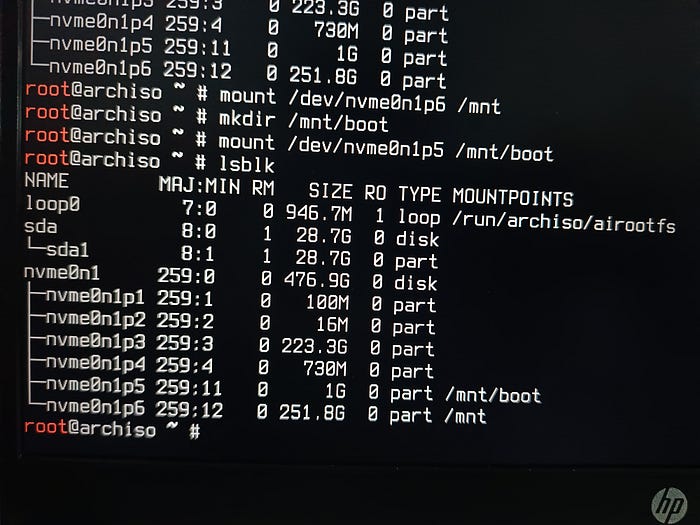
Ensure both partitions are properly mounted to /mnt and /mnt/boot.
Step 14: Installing Arch Linux With ArchInstall Script
Now it’s time to use the automated ArchInstall script to install Arch Linux.
Launch ArchInstall
archinstall You’ll see a menu-driven interface. Use arrow keys to navigate and Enter to select.
Configuration Steps
1. System Language
- Select your preferred language (e.g., en_US)
2. Locale
- Choose your locale (e.g., en_US.UTF-8)
3. Disk Configuration
- Select “Disk configuration”
- Choose “Pre-mounted configuration”
- Enter root directory: /mnt
- Press Enter to confirm
- Go back to main interface
- Verify that the script recognized your root partition
4. Swap
- Ensure swap is enabled
5. Bootloader
- Select “Bootloader”
- Choose GRUB (recommended for dual boot)
6. Hostname
- Enter hostname: archlinux (or your preferred name)
7. Root Password
- Set a strong password for the root user
8. User Account
- Create a new user account
- Add this user to the sudoers group for elevated privileges
9. Profile
- Select “Profile”
- Choose “Desktop”
- Select Minimal Desktop (This is crucial we will run Omarchy install script on top of a minimal Desktop)
10. Graphics Drivers
Select based on your hardware:
- Intel iGPU: Intel (open source)
- AMD GPU: AMD / ATI (open source)
- NVIDIA RTX (newer cards): Nvidia (proprietary)
- NVIDIA (older cards): Nouveau (open source)
- Unsure: All open-source drivers
11. Audio
- Select “Audio”
- Choose PipeWire (recommended for best compatibility)
12. Kernels
- Stick with the latest kernel (default)
- Optionally install additional kernels if needed
13. Network Configuration
- Select “Network configuration”
- Choose NetworkManager
14. Additional Packages (Optional)
- Press / followed by package name
- Press Tab to select
- Examples:
firefox,vlc,git, etc.
15. Timezone
- Select your timezone for correct system time
Begin Installation
- Review all options to ensure nothing is left blank
- Select “Install”
- Wait for the ArchInstall script to complete (this may take several minutes)
Step 15: Post-Installation — GRUB Installation
After installation completes, you’ll see a prompt for post-installation steps.
Enter Chroot Environment
Select the option to perform post-installation steps to enter the chroot environment.
Verify Partitions
lsblk
Manually Install GRUB
The script may not install GRUB properly, so we’ll do it manually.
- Install required packages:
pacman -S grub efibootmgr dosfstools mtools
- Install GRUB to the boot partition:
grub-install --target=x86_64-efi --efi-directory=/boot --bootloader-id=GRUB
- Generate GRUB configuration file:
grub-mkconfig -o /boot/grub/grub.cfg GRUB bootloader is now installed successfully!
Step 17: Finalize and Reboot
Exit Chroot Environment
exit
Unmount Partitions
umount -R /mnt
Shutdown System
shutdown now Eject the USB drive before the system powers off completely.
Step 18: First Boot and GRUB Setup
Make GRUB as Default Boot Manager
When you turn on your computer:
- If you see the GRUB menu, proceed to Step 19
- If your system boots directly into Windows 11:
- Restart your computer
- Press the BIOS key during startup
- Navigate to Boot Options
- Select GRUB under UEFI boot entries
- Make GRUB the default boot manager
- Save and exit
- Reboot
You should now see the GRUB boot menu.
Boot Into Arch Linux
- Select Arch Linux from GRUB menu
- Login with your user credentials
Step 19: Adding Windows Entry to GRUB
Currently, Windows 11 won’t appear in the GRUB menu. Let’s fix that.
Edit GRUB Configuration
Open terminal in Arch Linux and edit the GRUB configuration:
sudo nano /etc/default/grub
Modify Settings
- Find the line:
GRUB_TIMEOUT=5 - Change it to:
GRUB_TIMEOUT=30(or your preferred timeout in seconds) - Scroll to the bottom and find:
#GRUB_DISABLE_OS_PROBER=false
- Uncomment it (remove the
#):
GRUB_DISABLE_OS_PROBER=false This allows GRUB to detect the Windows boot loader.
Save and Exit
- Press Ctrl + O to save
- Press Enter to confirm
- Press Ctrl + X to exit
Step 20: Running Omarchy Script in our fresh archinstall
- Connect to internet using USB-Tethering or using nmcli command
sudo nmcli dev wifi connect <WIFINAME> password <YOURPASSWD>
- Now check the connection using ping:
ping -c 5 google.com
- Update your system and install some recommended packages/dependencies
sudo pacman -Syyu sudo pacman -S git wget curl nano vim
- Run Omarchy install Script
wget -q0- https://omarchy.org/install | bash That’s it now sit back and be patient and let the script do it’s job.
That’s it now you’ve Suceesfully dual booted Omarchy with Windows11 💐
You can learn more about Omarchy here.
Related
Continue reading
All writings